
15 Easy Tools for Software Noobs
| Best Software for Beginners in 2026 is software that helps you complete a real task before it asks you to understand dozens of technical settings. |
15 Best Software Tools for Complete Beginners in 2026
The best software for beginners is software that helps you complete a real task before it asks you to understand dozens of technical settings. For most software noobs, the smartest starter kit includes a simple design tool, an office suite, a password manager, a browser, a media player, cloud storage and one task-management app. You do not need to install everything at once. Choose the tool that solves today’s problem, complete one small project, and add new software only when your work requires it.
Our top three beginner picks are Canva for design, Trello for organizing tasks and VLC media player for opening common media files. Security should not be postponed, so a password manager such as Bitwarden belongs near the beginning of your setup rather than the end.
| Quick answerA complete beginner should start with one tool in each essential category: Canva for simple design, LibreOffice for documents, Trello or Notion for organization, Bitwarden for passwords, Firefox for browsing, VLC for media and Google Drive for sharing. Add CapCut, OBS, Audacity, VS Code or WordPress.com only when you have a specific creative or technical goal. |
What does “software noob” mean?
In this guide, a software noob simply means a person who is new to computer applications or uncomfortable with technical menus. It may describe a first-time PC user, a student, a new freelancer or someone moving into a new type of work. The phrase can be confusing because NOOBS was also the name of Raspberry Pi’s “New Out Of Box Software” installer. This article uses the everyday beginner meaning, not the Raspberry Pi product meaning.
Quick comparison: the best software for beginners
| Tool | Best for | Free start? | Platforms | Ease |
|---|---|---|---|---|
| Canva | simple graphic design | Yes* | Web, Windows, macOS, Android, iOS | 9.4 |
| CapCut | beginner video editing | Yes* | Windows, macOS, web, Android, iOS | 9.0 |
| LibreOffice | free desktop office suite | Yes* | Windows, macOS, Linux | 8.6 |
| Notion | notes and personal organization | Yes* | Web, Windows, macOS, Android, iOS | 8.8 |
| Trello | visual task management | Yes* | Web, Windows, macOS, Android, iOS | 9.1 |
| Bitwarden | safer password management | Yes* | Web, browser extensions, Windows, macOS, Linux, Android, iOS | 8.7 |
| Mozilla Firefox | beginner-friendly privacy-conscious browser | Yes* | Windows, macOS, Linux, Android, iOS | 8.9 |
| VLC media player | opening audio and video files | Yes* | Windows, macOS, Linux, Android, iOS | 9.3 |
| OBS Studio | screen recording and live streaming | Yes* | Windows, macOS, Linux | 7.8 |
| Audacity | basic audio editing | Yes* | Windows, macOS, Linux | 8.2 |
| 7-Zip | compressed files | Yes* | Windows; command-line ports exist elsewhere | 8.5 |
| Google Drive | cloud file storage and sharing | Yes* | Web, Windows, macOS, Android, iOS | 9.0 |
| Zoom | joining online meetings | Yes* | Web, Windows, macOS, Linux, Android, iOS | 8.9 |
| Visual Studio Code | first code editor | Yes* | Windows, macOS, Linux, web | 8.3 |
| WordPress.com | building a first website without code | Yes* | Web, mobile apps | 8.5 |
*Free tiers and feature limits can change. Check the linked official page before publishing or recommending a purchase.
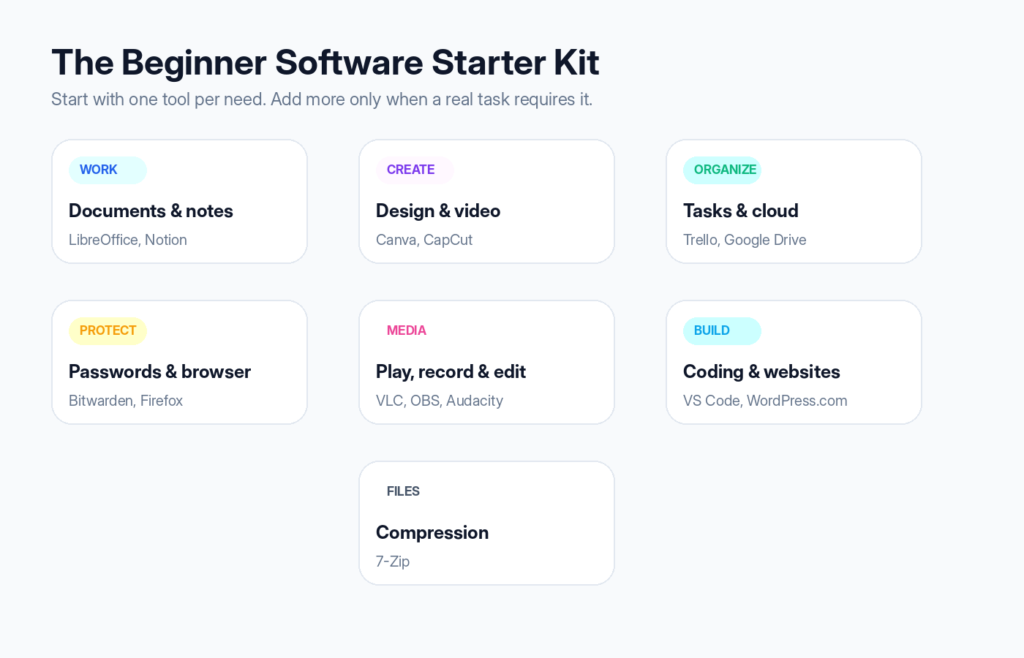
Figure 2. A practical starter kit organized by the problem each tool solves.
How we evaluated these tools
The editorial ease score is designed to make this comparison more useful than a random list. Each tool was assessed against five questions:
- Can a beginner install or open it without technical preparation?
- Are the main controls understandable without a manual?
- Can the free option complete a meaningful first task?
- Are official tutorials, templates or help pages available?
- Will the tool remain useful after the user improves?
Community discussions were used to identify beginner pain points such as confusing interfaces, steep learning curves, premium feature locks and uncertainty about which tool to learn first. Factual product claims and plan information are linked to official product pages rather than treated as facts simply because they appeared on Reddit or YouTube.
1. Canva — best for simple graphic design
Official site: Canva | Editorial ease score: 9.4/10 | Platforms: Web, Windows, macOS, Android, iOS
Canva is the easiest starting point for people who need social posts, presentations, thumbnails, resumes or simple marketing graphics without learning professional design software first. Its template-led workflow helps a beginner begin with a useful layout instead of a blank canvas.
- Why beginners like it: Templates, drag-and-drop editing, simple resizing and a large beginner tutorial ecosystem reduce the fear of starting.
- Best first project: Create a YouTube thumbnail or one-page business flyer using a template, then replace the text, images and colors.
- Free-plan reality: The free tier includes the core design tools and many free templates and media assets; premium assets and advanced brand or AI features may require an upgrade.
- Main limitation: Template dependence can make designs look generic, and advanced print, illustration or color-management work needs specialist software.
Best for: students, freelancers, small businesses and new content creators.
Skip it when: you need detailed vector drawing, professional prepress controls or complex photo retouching.
2. CapCut — best for beginner video editing
Official site: CapCut | Editorial ease score: 9.0/10 | Platforms: Windows, macOS, web, Android, iOS
CapCut gives new editors a familiar timeline, templates, captions, transitions and social-media export options. It is especially approachable for short videos, reels, explainers and basic YouTube edits.
- Why beginners like it: The editing controls use clear visual labels, while templates and automatic tools reduce repetitive work.
- Best first project: Import three short clips, trim the unwanted parts, add a title and music, then export a 30-second video.
- Free-plan reality: Basic editing remains available without an upfront purchase, but some effects, AI features and assets are marked Pro. Always check the export screen before building a project around a premium feature.
- Main limitation: Frequent feature changes and Pro labels can confuse beginners; privacy-sensitive users should review current terms before uploading personal media.
Best for: short-form creators, students, marketers and first-time YouTube editors.
Skip it when: you require a stable professional post-production pipeline, advanced color work or long-form team collaboration.
3. LibreOffice — best free desktop office suite
Official site: LibreOffice | Editorial ease score: 8.6/10 | Platforms: Windows, macOS, Linux
LibreOffice provides word processing, spreadsheets, presentations and other office tools without a subscription. It is a strong option for beginners who need offline documents and familiar desktop menus.
- Why beginners like it: Writer, Calc and Impress follow the traditional office-suite model, so users can learn common document skills that transfer to other productivity software.
- Best first project: Write a one-page letter in Writer, add a heading and table, then export it as PDF.
- Free-plan reality: LibreOffice is free and open source. It supports many Microsoft Office formats, although complex files can occasionally change layout.
- Main limitation: Real-time web collaboration is not as simple as cloud-first suites, and the interface can feel less modern than browser-based alternatives.
Best for: home users, students, offline workers and anyone avoiding recurring office subscriptions.
Skip it when: your main requirement is effortless real-time collaboration with a large remote team.
4. Notion — best for notes and personal organization
Official site: Notion | Editorial ease score: 8.8/10 | Platforms: Web, Windows, macOS, Android, iOS
Notion combines pages, notes, checklists, simple databases and project information in one workspace. A beginner can start with a plain page and gradually add structure instead of learning every feature immediately.
- Why beginners like it: Templates and block-based editing make it easy to mix text, checklists, images, links and tables.
- Best first project: Create a weekly planner with one page, seven headings and a checklist under each day.
- Free-plan reality: The individual free plan is useful for personal notes and lightweight organization, while file-size, collaboration and advanced AI or automation limits can change.
- Main limitation: The freedom to build almost anything can become overwhelming, and users often spend too much time perfecting systems instead of doing the work.
Best for: personal knowledge bases, content calendars, study notes and small project hubs.
Skip it when: you want a fully offline tool or a rigid task manager that requires almost no setup decisions.
5. Trello — best for visual task management
Official site: Trello | Editorial ease score: 9.1/10 | Platforms: Web, Windows, macOS, Android, iOS
Trello turns projects into boards, lists and cards. Its visual Kanban layout makes progress easy to understand: tasks move from To Do to Doing to Done.
- Why beginners like it: The core workflow can be learned in minutes, and cards can hold checklists, dates, links and attachments.
- Best first project: Create three lists—To Do, In Progress and Done—then add five tasks and move one card across the board.
- Free-plan reality: The free plan is sufficient for many personal and small-workspace projects, although workspace board limits and premium views apply.
- Main limitation: Large or highly dependent projects can become messy, and advanced reporting requires other tools or paid features.
Best for: freelancers, content teams, household planning and simple client pipelines.
Skip it when: you need advanced resource planning, detailed dependencies or financial project controls.
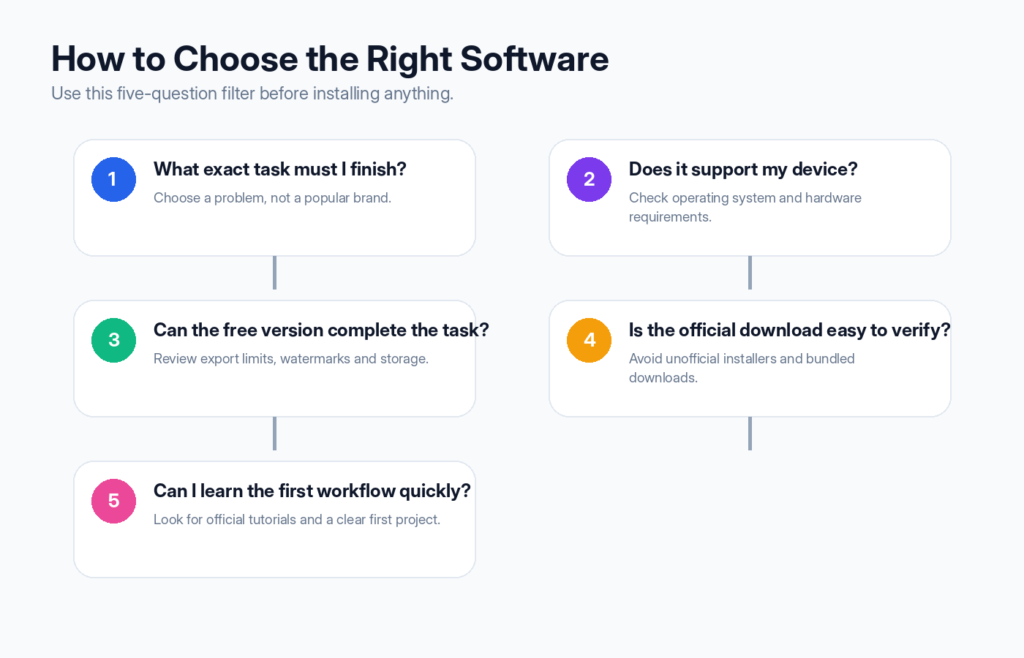
Figure 3. Five questions that prevent unnecessary downloads and subscriptions.
Bitwarden — Best Software for Beginners in 2026 for Safer Password Management
Official site: Bitwarden | Editorial ease score: 8.7/10 | Platforms: Web, browser extensions, Windows, macOS, Linux, Android, iOS
Bitwarden helps beginners stop reusing weak passwords by storing logins in an encrypted vault and generating unique passwords. This is one of the most useful early upgrades for a new computer user.
- Why beginners like it: A browser extension can save and fill credentials, while the password generator removes the need to invent memorable passwords.
- Best first project: Create the vault, save one low-risk account, generate a unique password and confirm that autofill works before migrating important accounts.
- Free-plan reality: Core personal password-management features are available free, including multi-device access. Paid options add selected security and sharing features.
- Main limitation: Losing the master password can lock you out, so beginners must create a recovery plan and enable multi-factor authentication carefully.
Best for: almost every internet user, especially anyone reusing passwords.
Skip it when: you are unwilling to learn the recovery process or cannot securely store backup codes.
7. Mozilla Firefox — best beginner-friendly privacy-conscious browser
Official site: Mozilla Firefox | Editorial ease score: 8.9/10 | Platforms: Windows, macOS, Linux, Android, iOS
Firefox is a familiar web browser with a clear interface, synchronization, extensions and privacy controls. It is a useful alternative for beginners who want more choice in how their browser handles tracking.
- Why beginners like it: The basics—tabs, bookmarks, downloads and history—work as expected, while advanced settings can be ignored until needed.
- Best first project: Import bookmarks, pin your three most-used sites and review the privacy protection dashboard.
- Free-plan reality: Firefox is free to download and use. Optional services and extensions may have their own terms.
- Main limitation: Some websites are primarily tested in Chromium-based browsers, so an occasional compatibility issue may require a second browser.
Best for: general browsing, research, web learning and users who value browser choice.
Skip it when: your workplace requires a browser-specific enterprise extension that Firefox does not support.
8. VLC media player — best for opening audio and video files
Official site: VLC media player | Editorial ease score: 9.3/10 | Platforms: Windows, macOS, Linux, Android, iOS
VLC is a free, open-source media player known for supporting a wide range of audio and video formats. It solves a simple beginner problem: opening a media file without hunting for codec packs.
- Why beginners like it: The default Play, Pause, volume and subtitle controls are familiar, and most files open with a double-click.
- Best first project: Open a local video, load a subtitle file and adjust playback speed.
- Free-plan reality: VLC is free and open source, without a required subscription. Download it only from the official VideoLAN site or verified stores.
- Main limitation: Its many advanced menus can look dated or technical, but beginners can safely ignore them.
Best for: everyday media playback, subtitles, local files and basic format troubleshooting.
Skip it when: you mainly need a streaming-library service rather than a local media player.
9. OBS Studio — best for screen recording and live streaming
Official site: OBS Studio | Editorial ease score: 7.8/10 | Platforms: Windows, macOS, Linux
OBS Studio records screens, windows, webcams and microphones and can also stream live. It is powerful and free, but it requires more initial setup than the easiest tools in this list.
- Why beginners like it: The Auto-Configuration Wizard handles many settings, and a simple scene with one display source is enough for a first recording.
- Best first project: Run the wizard, add Display Capture and a microphone source, record a one-minute tutorial, then check the saved file.
- Free-plan reality: OBS Studio is free and open source. Plugins can add features, but beginners should first master the official application.
- Main limitation: Audio sources, scenes and encoder settings can feel technical; poor settings may produce large files or choppy video.
Best for: tutorial makers, gamers, teachers, webinar hosts and future streamers.
Skip it when: you only need occasional one-click screenshots or very simple short recordings.
10. Audacity — best for basic audio editing
Official site: Audacity | Editorial ease score: 8.2/10 | Platforms: Windows, macOS, Linux
Audacity lets beginners record voice, cut mistakes, reduce simple background noise and export common audio formats. It is widely used for podcasts, voiceovers and basic cleanup.
- Why beginners like it: Audio appears as a visible waveform, making it easy to select a mistake and delete it.
- Best first project: Record 30 seconds of speech, remove a pause, normalize the volume and export an MP3 or WAV file.
- Free-plan reality: Audacity is free and open source. Optional cloud or companion services may have separate features or accounts.
- Main limitation: The interface is functional rather than polished, and professional mixing or music production may need a full digital audio workstation.
Best for: voiceovers, interviews, simple podcasts and basic audio repair.
Skip it when: you want loop-based music creation, advanced MIDI composition or a modern multi-track production workflow.
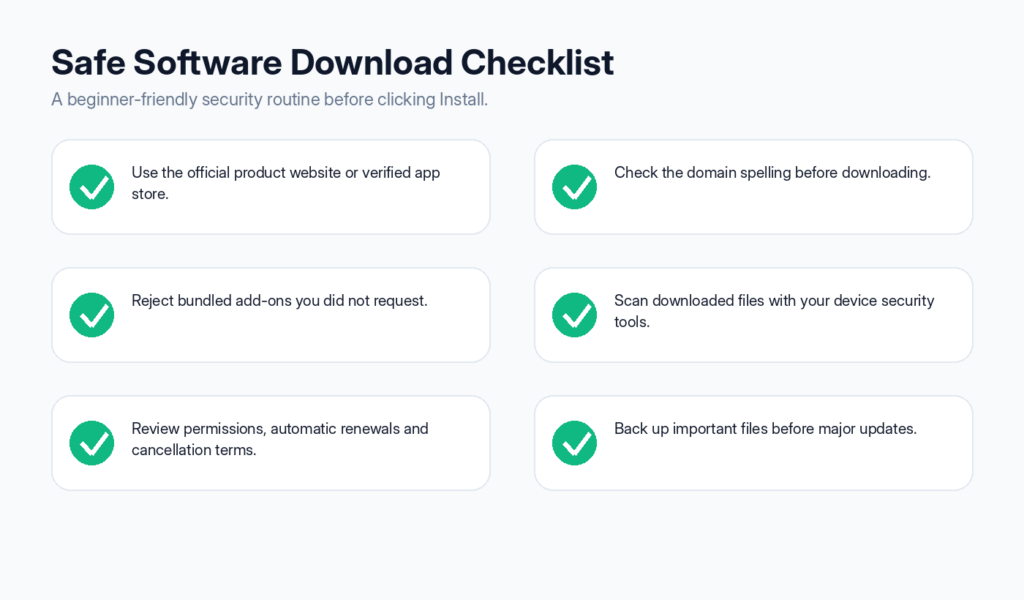
Figure 4. A reusable safety checklist for new software users.
11. 7-Zip — best for compressed files
Official site: 7-Zip | Editorial ease score: 8.5/10 | Platforms: Windows; command-line ports exist elsewhere
7-Zip helps Windows users open and create compressed archives such as ZIP and 7z files. It is lightweight, free and useful when downloading software bundles or sending groups of files.
- Why beginners like it: After installation, common actions appear in the right-click menu, so beginners do not need to learn a full interface.
- Best first project: Right-click a test folder, create a ZIP archive, then extract it into a new folder and confirm the files match.
- Free-plan reality: 7-Zip is free and open source. The official site has a plain design, so verify the domain carefully and avoid copycat download pages.
- Main limitation: Its interface looks technical, and encryption settings require care because forgotten passwords cannot be recovered.
Best for: Windows users handling ZIP, 7z and other archives.
Skip it when: your operating system’s built-in ZIP support already covers every task you perform.
12. Google Drive — best for cloud file storage and sharing
Official site: Google Drive | Editorial ease score: 9.0/10 | Platforms: Web, Windows, macOS, Android, iOS
Google Drive stores files online and connects closely with Docs, Sheets and Slides. Beginners can share a link, collaborate on a document and access files from multiple devices.
- Why beginners like it: The web interface resembles folders on a computer, while sharing controls use simple viewer, commenter and editor roles.
- Best first project: Create a folder, upload one file, share it with yourself or a trusted person as a viewer, then revoke the link.
- Free-plan reality: A Google account includes a limited amount of shared storage across supported Google services; additional storage requires a plan.
- Main limitation: Sharing settings can expose files if links are configured carelessly, and syncing large folders may use significant bandwidth and storage.
Best for: students, remote teams, document collaboration and device-to-device access.
Skip it when: you cannot use cloud storage because of privacy, legal or offline-only requirements.
13. Zoom — best for joining online meetings
Official site: Zoom | Editorial ease score: 8.9/10 | Platforms: Web, Windows, macOS, Linux, Android, iOS
Zoom remains a straightforward way to join video meetings, classes and client calls. A beginner can follow an invitation link, test audio and enter without learning a complex collaboration suite.
- Why beginners like it: Join, mute, camera, chat and share-screen controls are prominent and supported by a large help ecosystem.
- Best first project: Open a test meeting, select the correct microphone and speaker, practice mute and camera controls, then leave.
- Free-plan reality: Basic meeting access is available free, while host limits and advanced business features depend on the current plan.
- Main limitation: Meeting fatigue, privacy settings and accidental screen sharing are real risks; users should preview what is visible before sharing.
Best for: remote calls, interviews, classes, client meetings and webinars.
Skip it when: your organization standardizes on another meeting platform or requires specialized compliance controls.
14. Visual Studio Code — best first code editor
Official site: Visual Studio Code | Editorial ease score: 8.3/10 | Platforms: Windows, macOS, Linux, web
Visual Studio Code is a flexible editor for HTML, CSS, JavaScript, Python and many other languages. It is not a full programming course, but it gives beginners a clean place to write and organize code.
- Why beginners like it: Syntax highlighting, file navigation, search and a large extension ecosystem make code easier to read and troubleshoot.
- Best first project: Create a folder with index.html, type a basic heading and paragraph, save the file and open it in a browser.
- Free-plan reality: VS Code is free. Extensions are created by different publishers, so beginners should prefer verified and widely trusted extensions.
- Main limitation: It can appear deceptively simple; running code still requires language runtimes, terminals and project-specific setup.
Best for: new web developers, students, automation learners and anyone editing code or configuration files.
Skip it when: you want a guided visual website builder with no code at all.
15. WordPress.com — best for building a first website without code
Official site: WordPress.com | Editorial ease score: 8.5/10 | Platforms: Web, mobile apps
WordPress.com allows a beginner to create pages, posts and a simple site through a hosted dashboard. It is a gentler introduction than managing hosting, databases and server updates independently.
- Why beginners like it: Themes, blocks and managed hosting let users focus on content and layout before learning technical administration.
- Best first project: Create a test site, publish an About page, add a navigation menu and preview it on mobile.
- Free-plan reality: A free starting option can be used for learning, while custom domains, advanced design controls, plugins and business features depend on paid plans.
- Main limitation: WordPress.com plan rules differ from self-hosted WordPress.org, so beginners must understand the distinction before choosing a long-term setup.
Best for: personal blogs, portfolios, simple service sites and content publishing practice.
Skip it when: you require full server control, unrestricted plugins or a custom web application from day one.
How beginners should choose software
The right choice begins with a task, not a brand. “I need software” is too broad; “I need to create a two-minute product video on Windows” gives you a useful filter. Before installing anything, confirm the following:
- The tool supports your operating system and device specifications.
- The free version can export or save the result you actually need.
- The official download page is easy to identify.
- The privacy policy is acceptable for the type of files you will upload.
- A current official tutorial can guide you through the first project.
- You can cancel a trial or subscription without losing access to essential files.
A common beginner mistake is installing several tools that perform the same job. This creates duplicate files, inconsistent workflows and subscription confusion. Learn one tool well enough to finish a project before comparing alternatives.
Common mistakes software noobs should avoid
Downloading from advertisements or copycat sites: Search results can contain unofficial download pages. Use the product’s verified domain or an official app store.
Assuming every “free” feature remains free: Templates, effects and AI tools can move between plans. Test the complete export workflow before starting an important project.
Ignoring automatic renewal: A free trial may convert into a paid subscription. Record the renewal date and cancellation process.
Allowing every permission: A design or media app may request access to files, camera, microphone or contacts. Grant only what the task needs.
Learning five tools at once: Progress comes from completing projects, not collecting software. Pick one first project and finish it.
Skipping backups: Cloud sync is not always the same as a separate backup. Keep copies of important original files.
Free vs paid software: when should a beginner upgrade?
Free software is enough when it completes the full task, exports the required format and does not create an unacceptable watermark, privacy risk or time limit. Paying makes sense when the upgrade removes a repeated business bottleneck—such as team permissions, brand controls, storage limits, advanced exports or customer support—not simply because a premium button is visible.
- Stay free while learning the core workflow.
- Upgrade only after you can name the limitation costing you time or money.
- Compare monthly and annual commitments before subscribing.
- Confirm that your files remain exportable if you later cancel.
- Avoid using premium assets in a project until you know the final export cost.
Software safety checklist for complete beginners
- Download only from the official website or verified store.
- Confirm the domain spelling and HTTPS connection.
- Avoid cracks, modified installers and “free Pro” downloads.
- Keep the operating system, browser and security tools updated.
- Use unique passwords and multi-factor authentication.
- Back up project files before major updates or migrations.
- Read what the application will collect, upload or synchronize.
Frequently asked questions
What is the easiest software for a complete beginner?
Canva is one of the easiest creative tools, Trello is one of the simplest task managers and VLC is one of the easiest media players. The easiest choice still depends on the task you need to finish.
Which free software should a new PC user install first?
Start with a trusted browser, a password manager, an office suite, a media player and a backup or cloud-storage method. Firefox, Bitwarden, LibreOffice, VLC and Google Drive are practical examples.
Is free software safe?
Free software can be safe, but price alone does not prove safety. Download from official sources, check permissions, keep the software updated and avoid modified or cracked versions.
How long does it take to learn new software?
A beginner can often learn one core workflow in an hour or less, but mastery takes repeated projects. Focus on the first useful outcome rather than learning every feature.
Should beginners use AI-powered software?
AI features can reduce repetitive work, but beginners should verify outputs, protect private data and understand which features require payment. AI should support the workflow, not replace basic judgment.
Why should I not use “software noobs” as the only target keyword?
The phrase is ambiguous and can refer to Raspberry Pi NOOBS. A clearer primary keyword such as “best software for beginners” matches the broader search intent, while “software noobs” can still appear naturally as a supporting phrase.
Final verdict
The best software for beginners is not the tool with the longest feature list. It is the tool that makes the first useful result easy, gives clear feedback and leaves room to grow. Begin with a small core: Canva or LibreOffice for creating, Trello or Notion for organizing, Bitwarden for safer logins, Firefox for browsing, VLC for media and Google Drive for sharing. Then add CapCut, OBS, Audacity, VS Code or WordPress.com when a specific project creates the need.
For software noobs, confidence grows through completed projects. Create one graphic, edit one short video, organize one board, record one screen tutorial or publish one simple page. That practical experience is more valuable than installing every recommended application at once.
Research references and verification links
Use these references for factual verification, editorial updates and contextual outbound links. Official product pages should remain the primary source for current features, supported platforms and plan limits.
- Google Search Essentials: people-first content and prominent keyword placement
- Google guidance on generative AI content
- Google Image SEO best practices
- Google Article structured data documentation
- Google Core Web Vitals guidance
- Raspberry Pi: Introducing NOOBS
- Reddit: absolute beginner video editing discussion
- Reddit: beginner software and code-editor discussion
- YouTube: official Canva beginner course
- YouTube: LibreOffice introduction from The Document Foundation