
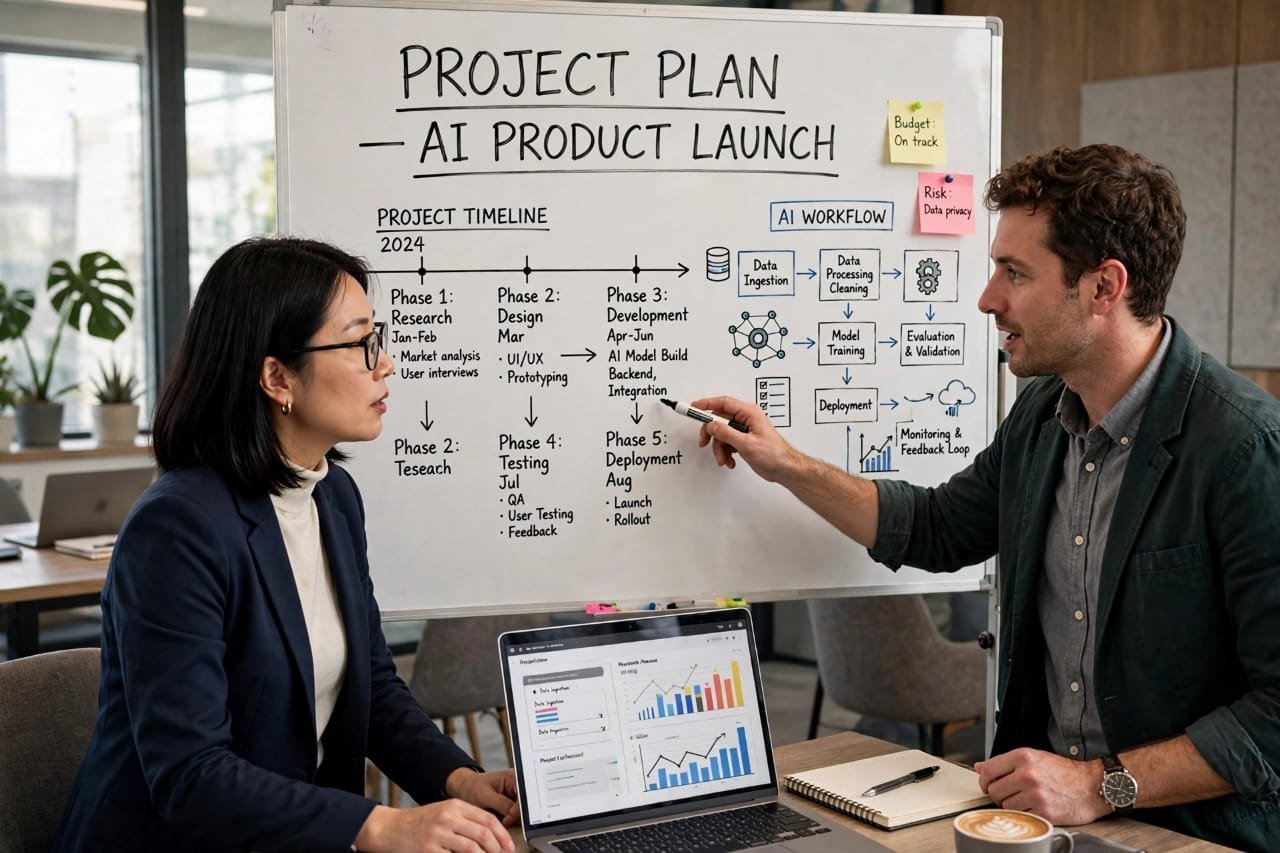
Let me be honest with you.
When I first started using Microsoft Project, I hated it. Not because it was bad. It was actually too powerful. Too many buttons, too many views, too many options. I would spend 2 hours just to create a simple project plan for a website launch. And then, when my boss said, “Can we finish it one week early?” I had to redo everything again from scratch.
If you have ever felt the same, you are not alone.
That is exactly why I started using AI for MS Project. And honestly, it changed everything for me.
In this guide, I am going to show you, step by step, how to use AI in Microsoft Project for faster planning. No technical jargon. No boring theory. Just real, practical stuff that you can use today, even if you are a complete beginner.
Table of Contents
What is AI for MS Project?
In simple words, AI for MS Project means letting Artificial Intelligence help you do the boring and time-consuming work inside Microsoft Project.
Think of it like this. Earlier, you were the driver, the map reader, and the mechanic all at the same time. Now, AI sits next to you as a smart co-pilot.
You tell it, “I want to launch a new online store in 45 days.” And AI will:
- Break that big goal into small tasks
- Set realistic dates for each task
- Assign tasks to the right people
- Find which tasks can run together to save time
- Warn you if your plan is going to be late
You still have full control. AI just does the heavy lifting for you.
Microsoft now has its own AI called Microsoft Copilot. It works directly inside MS Project. But you can also use other AI tools like ChatGPT, ClickUp AI, Motion, and Taskade with MS Project. We will talk about all of them.
Why Should You Use AI in Microsoft Project? My Real Experience
Before AI, my planning process looked like this:
I would open MS Project, create 60 tasks manually, link them one by one, guess the deadlines, and then realize after 3 days that I forgot the testing phase. The whole plan would fail.
After AI, my process is completely different.
Now I write one paragraph about my project, paste it into Copilot or ChatGPT, and within 2 minutes I get a full draft plan. Then I spend 20 minutes fixing and improving it. That is it.
Here is what actually improved for me:
1. Planning time dropped by 70%
A plan that used to take me 4 hours now takes me 45 minutes.
2. Fewer missed deadlines
AI looks at my old projects and tells me, “Hey, last time testing took 8 days, not 4 days. You should add more time here.” That one warning has saved me many times.
3. Better team management
I no longer assign tasks by guessing. AI checks who is free, who is overloaded, and who is good at what.
4. Faster reporting
Earlier I spent Friday evenings making status reports. Now I just ask Copilot, “Summarize this project progress,” and it writes a clean report in 30 seconds.
If you manage even 2-3 projects at a time, this is a game-changer.
The Honest Truth: Pros and Cons of AI for MS Project
I am not going to tell you that AI is perfect. Because it is not. As someone who uses it every day, here is my honest opinion.
The Positive Side – What I Love
1. It is incredibly fast
You can create a 50-task plan in minutes. For freelancers and small business owners, time is money.
2. It catches human mistakes
We humans forget things. AI does not. It will remind you if you forgot to add dependencies, holidays, or review time.
3. It makes you look professional
Your Gantt charts, reports, and timelines look clean and well-organized. Clients get impressed.
4. It helps beginners a lot
If you are new to MS Project, AI is like having a senior project manager sitting next to you, guiding you.
The Negative Side – What You Must Be Careful About
1. AI can be wrong sometimes
This is the biggest issue. AI sometimes gives unrealistic deadlines. For example, it once told me I could build a full e-commerce website in 10 days. That was impossible. You must always review its plan. Never blindly trust it.
2. It needs good data
If your old project data is messy, AI will give messy suggestions. Garbage in, garbage out.
3. It costs extra
Microsoft Copilot is not free. It is around $30 per user per month on top of your MS Project subscription. For a small team, that adds up.
4. It cannot replace human judgment
AI does not know office politics, client mood, or that your best developer is going on leave next week. You know that. AI does not.
My rule is simple: Let AI do 80% of the work, but you do the final 20% with your brain. That is the winning formula.
How to Use AI in Microsoft Project: Step-by-Step Guide
Okay, now let us get practical. Here is the exact method I use.
Step 1: Start With a Clear Project Goal
Do not open MS Project first. Open Notepad first.
Write down in 3-4 lines:
- What is the project?
- What is the deadline?
- Who is in the team?
- What is the budget?
Example: “We need to redesign our company website. Deadline is 30th December. Team is 1 designer, 1 developer, 1 content writer. Budget is $5000.”
This paragraph is your gold. You will feed this to AI.
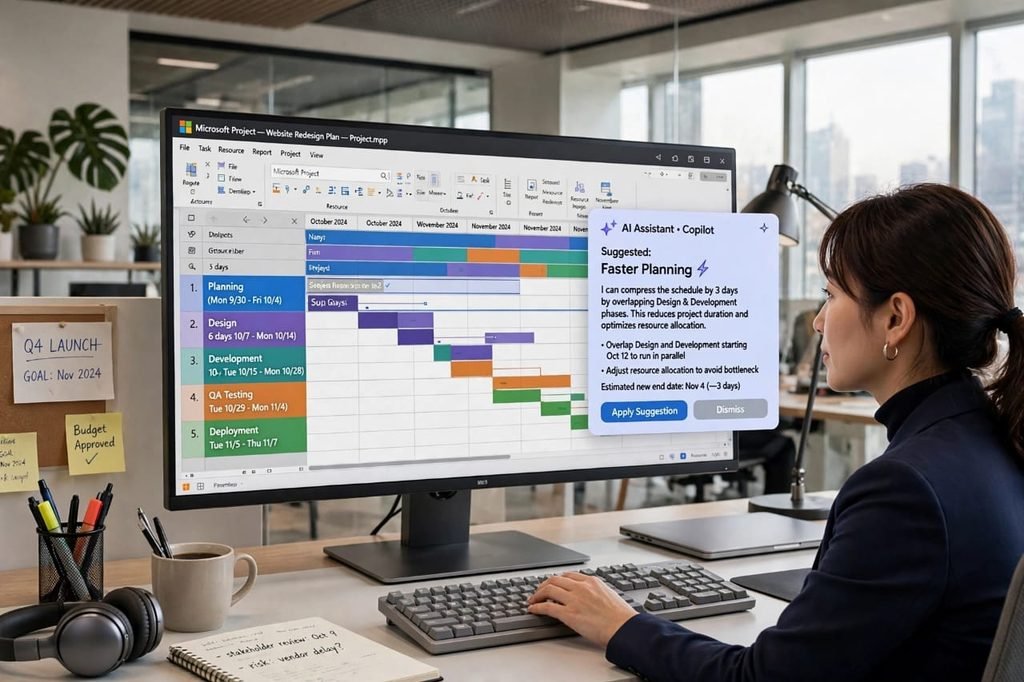
Step 2: Use Microsoft Copilot in MS Project
If you have Microsoft 365 and Copilot, this is the easiest way.
- Open your project in Microsoft Project
- Click on the Copilot icon on the top right
- Type something like: “Create a project plan for website redesign. Deadline is 30th December. Include design, development, testing, and launch.”
- Copilot will create tasks, dates, and dependencies automatically
- Review it, change what looks wrong, and click Save
I use this prompt most of the time: “Break this project into phases and suggest realistic deadlines based on a team of 3 people.”
Step 3: Use ChatGPT With MS Project (Free Method)
If you do not have Copilot, do not worry. I used this free method for 6 months.
Go to ChatGPT and paste this prompt:
“Act as an expert project manager. Create a detailed project plan for [your project]. Create a table with Task Name, Duration, Start Date, End Date, Assigned To, and Dependencies. Make it realistic for a small team.”
ChatGPT will give you a table. Copy that table, paste it into Excel, and then import it into MS Project. Done.
It takes 10 minutes extra, but it is free and it works really well.
Step 4: Let AI Optimize Your Schedule
This is my favorite part.
Once your plan is ready, ask AI:
“Find tasks that can run in parallel to shorten this project by 7 days without increasing risk.”
AI will find overlaps. For example, it will tell you that content writing and design can happen at the same time. This one tip alone saved my last project by 5 days.
In MS Project, you can also use the “Task Inspector” with AI suggestions to find over-allocated resources.
Step 5: Use AI for Risk Prediction and Reporting
Every Friday, I do this:
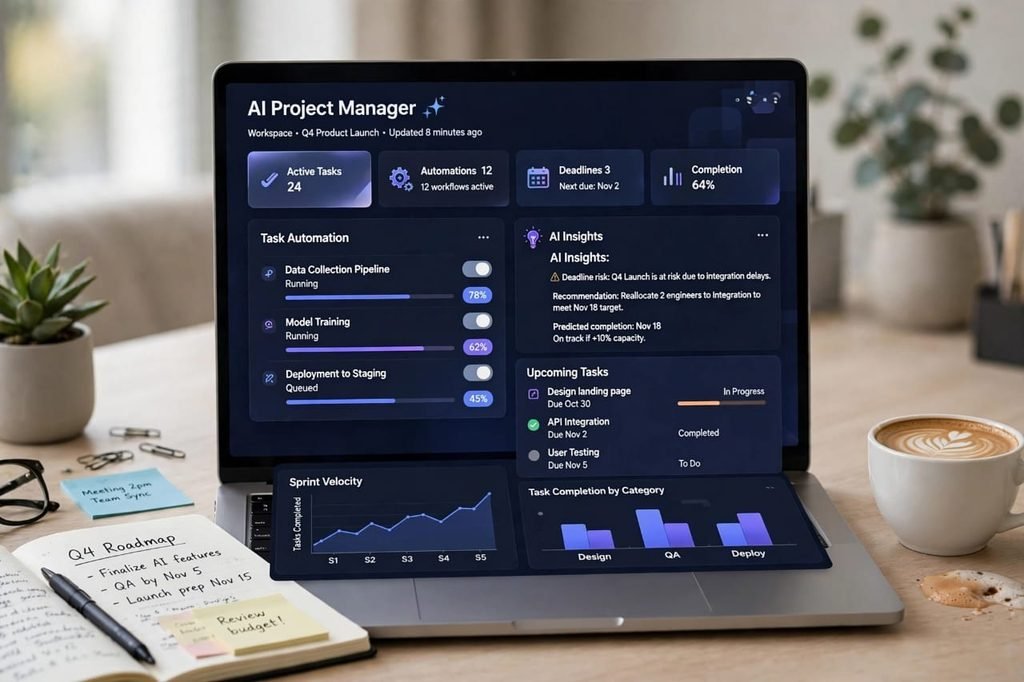
I ask Copilot: “Which tasks are at risk of delay in this project and why?”
It gives me a list like:
- Testing phase is at risk because developer is overloaded
- Client approval is pending for 3 days
Then I fix those issues on Monday morning, before they become big problems.
For reporting, I ask: “Summarize project progress in simple language for a non-technical client.”
AI writes a beautiful 1-page summary. I just copy and email it. My clients love it.
Best AI Tools for MS Project in 2026
Not all AI tools are the same. Here are the ones I have personally tried:
1. Microsoft Copilot – Best Overall
This is the official AI for MS Project. It works inside the software. Best for big companies. Downside: It is expensive.
2. ChatGPT + MS Project – Best Free Option
Best for beginners and freelancers. You use ChatGPT to create the plan, then import it. Very flexible.
3. Motion AI – Best for Automatic Scheduling
Motion automatically reschedules your tasks when something changes. If a meeting gets delayed, Motion moves your tasks automatically. I love this for daily planning.
4. ClickUp AI – Best for Small Teams
If your team finds MS Project too complicated, ClickUp AI is simpler. You can still export your plan to MS Project.
5. Taskade AI – Best for Quick Ideas
Great for brainstorming project ideas and turning them into a task list in seconds.
My personal setup? I use Copilot for big client projects and ChatGPT for my own small projects. That combination works best for me.
Real Example: How I Planned a Website Project in 38 Minutes
Let me share a real story.
Last month, a client asked me to plan a complete website redesign. Earlier, this would have taken me a full day.
Here is what I did with AI:
- 0-5 minutes: Wrote the project goal in Notepad
- 5-12 minutes: Asked Copilot to create the initial plan – it created 48 tasks
- 12-25 minutes: I reviewed and fixed 8 tasks that had wrong dates
- 25-33 minutes: Asked AI to optimize the schedule, it saved 6 days
- 33-38 minutes: Asked AI to create a client report
Total time: 38 minutes. The client was shocked at how fast I sent the plan.
And the best part? The project finished 2 days early because AI had warned me early about the testing delay.
This is the power of AI for MS Project. It is not magic. It is just smart work.
Common Mistakes to Avoid When Using AI for MS Project
I made all these mistakes, so you do not have to:
Mistake 1: Trusting AI 100%
Always check dates. AI does not know your team is on holiday next week.
Mistake 2: Giving vague prompts
Do not say “Make a plan.” Say “Make a plan for a 45-day website redesign for a team of 3 with a deadline of Dec 30.” The more detail you give, the better the result.
Mistake 3: Not updating the project
AI is only useful if your data is up to date. Update task status every 2-3 days. Otherwise AI will give wrong predictions.
Mistake 4: Using AI for everything
Do not let AI talk to your client for you. Use AI to draft, but add your human touch before sending.
Is AI for MS Project Worth It in 2026?
In my honest opinion: Yes, 100%.
If you are a project manager, freelancer, small business owner, or student, AI will save you 5-10 hours every week. That is 20-40 hours a month. Think about what you could do with that extra time.
Yes, it has some downsides. Yes, it costs money. Yes, it makes mistakes sometimes.
But if you use it the right way – AI for drafting, human brain for final decisions – it is the best investment you can make in your productivity this year.
Microsoft Project alone is powerful. Microsoft Project + AI is unstoppable.
Final Checklist: Start Today
Do not just read this and forget it. Do this today:
- Open your current project in MS Project
- Write one clear paragraph about your project goal
- Paste it into Copilot or ChatGPT
- Let AI create the first draft
- Spend 20 minutes fixing it
- Ask AI to find risks and optimize the schedule
That is it. You have just used AI for MS Project for the first time.
Frequently Asked Questions (FAQs)
What is AI for MS Project?
AI for MS Project is using Artificial Intelligence like Microsoft Copilot or ChatGPT to automate project planning, task creation, scheduling, and reporting inside Microsoft Project.
Can I use AI in Microsoft Project for free?
Yes, you can use ChatGPT free version to create project plans and import them into MS Project. Microsoft Copilot is paid, around $30 per month.
Is Microsoft Copilot good for MS Project?
Yes, Copilot is the best AI for MS Project because it works directly inside the software. It can create tasks, summarize progress, and predict risks automatically.
Will AI replace project managers?
No. AI will not replace project managers. It will replace project managers who do not use AI. Human judgment, leadership, and communication will always be needed.
How does AI help in faster planning?
AI creates task lists in minutes, finds parallel tasks to save time, predicts delays early, and automates reporting. This can reduce planning time by 60-70%.
Which is the best AI tool for MS Project beginners?
For beginners, I recommend starting with ChatGPT. It is free, easy to use, and you can learn the basics before paying for Copilot.
Final Thoughts
When I started, I thought AI was just a hype. Now, I cannot imagine managing projects without it.
AI for MS Project is not about being lazy. It is about being smart. It gives you more time to focus on what really matters – leading your team, talking to your clients, and delivering great work.
So, try it today. Start with one small project. You will be surprised at how much faster you become.
If you found this guide helpful, share it with your team. And if you have any questions about AI for MS Project, leave a comment below. I reply to every single comment.
Happy planning!